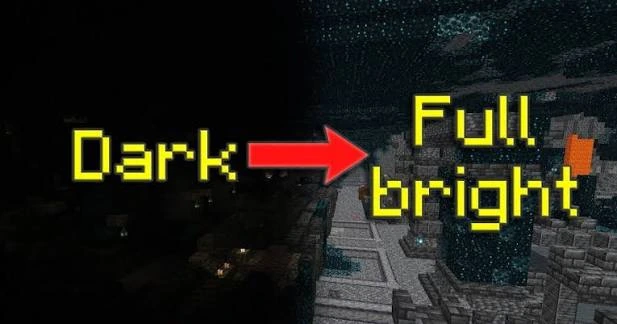
Fix common issues such as unchanged brightness, missing resource packs, or incompatible setup paths.
Pack not listed
Confirm that the ZIP is in the correct resource-pack folder and that the archive has pack.mcmeta at the expected level.
Brightness unchanged
Confirm OptiFine is active. Then disable shaders and other packs one at a time to identify overrides.
Version warning
If Minecraft reports an incompatible or old pack format, use a build made for your exact game version instead of ignoring the warning by default.
Quick setup checklist
- Confirm the exact Minecraft version you use.
- Confirm the package type and required loader or OptiFine dependency.
- Back up a working game configuration.
- Test Fullbright without conflicting shaders or packs first.